Finding the Best Software for Photo Editing in 2026

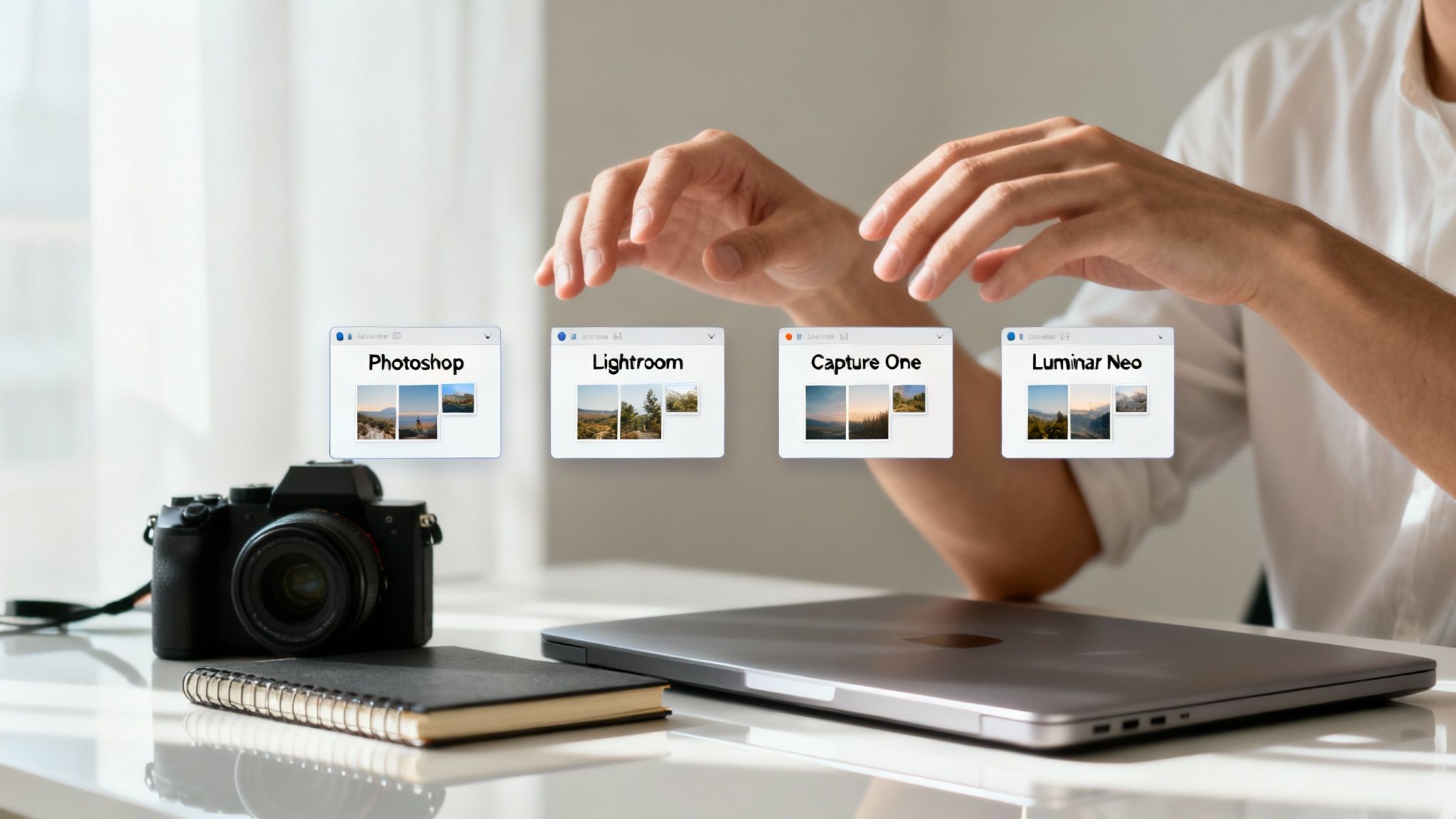
The question of the "best" software for photo editing really comes down to what you need to accomplish. For deep, pixel-perfect manipulation, nothing beats Adobe Photoshop. But if you're drowning in photos and need to organize and edit them in bulk, Adobe Lightroom is your workhorse.
Professionals who demand the absolute best color grading or need seamless tethered shooting in the studio often swear by Capture One. And for those who want stunning results fast, with a little help from AI, Luminar Neo is a serious contender.
Choosing Your Ideal Photo Editing Software
Finding the right editing tool isn’t about picking a single "winner" for everyone. It’s a much more personal decision, one that involves matching a program's strengths to your specific creative process. Each of these platforms takes a different philosophical approach to editing, and that’s a good thing—it means there's a perfect fit for just about everyone.
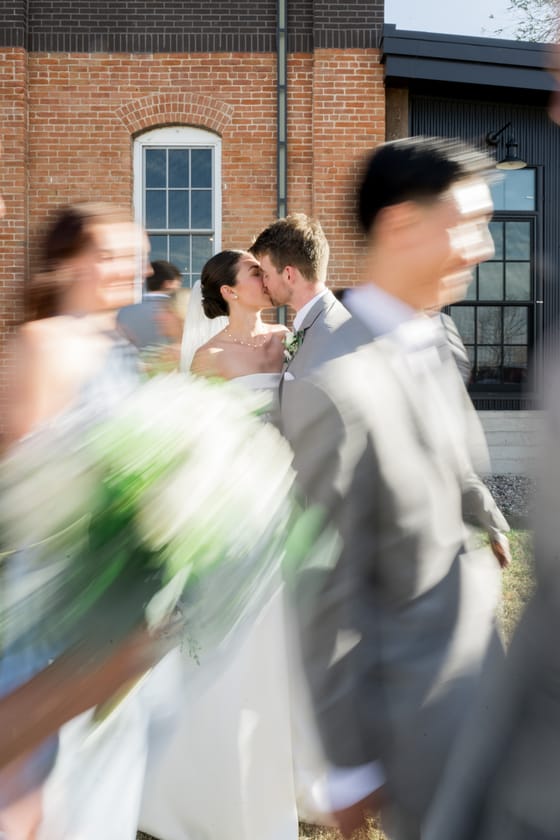
Your choice here has a real impact on your day-to-day efficiency and the quality of your final images. Think about it: a wedding photographer juggling thousands of photos from a single event has completely different needs than a commercial retoucher who might spend a full day on one intricate composite. This guide is here to help you cut through the noise and find the right software for the work you do.
A Look at the Top Contenders
The heavy hitters in the photo editing world each carved out their niche by excelling at something specific. Photoshop earned its reputation with a massive toolset built for complex composites, detailed retouching, and graphic design—anything where you need total control. Lightroom, on its own, was designed from the ground up for the photographer's complete workflow, from importing and culling to global adjustments and exporting.
Of course, having the right tool is only half the battle. Knowing how to edit photos like a professional is what brings the software to life. That knowledge is universal, no matter which platform you choose.
This kind of layered, meticulous workflow is where a tool like Photoshop truly shines, giving you granular control over every single detail.
A Quick Guide to Top Photo Editing Software
To make this decision a little easier, I've put together a quick-glance table. Think of it as a starting point to see which software's philosophy best aligns with your own.
Software
Best For
User Level
Key Feature
Adobe Photoshop
Detailed retouching, compositing, and graphic design
Intermediate to Professional
Unmatched layering and masking tools
Adobe Lightroom
Organizing, culling, and batch processing large photo sets
Beginner to Professional
Powerful non-destructive RAW processing and cataloging
Capture One Pro
Superior color grading and professional tethered shooting
Professional
Advanced color editor and studio-centric workflow
Luminar Neo
Fast, AI-powered enhancements and creative effects
Beginner to Intermediate
AI-driven tools like Sky Replacement and Portrait AI
It's no secret that Adobe Photoshop has a commanding presence in the market. Its deep integration with the Creative Cloud and a subscription model have made it a powerful draw for many professionals.
Choosing the right tool is the first step, but mastering it is what truly transforms your work. The best software is the one that feels like an extension of your creative vision, not a barrier to it.
Ultimately, your workflow should be the deciding factor. Getting familiar with the different ways photographers can elevate images will help you pinpoint which features you absolutely can't live without.
A Deep Dive Into The Industry-Leading Tools
When you're a working photographer, choosing your editing software is a huge decision. It's not about which program has the longest list of features; it's about finding a workflow that clicks with how you shoot. The real differences between the top contenders are often subtle but have a massive impact on your speed, efficiency, and the final look of your images.
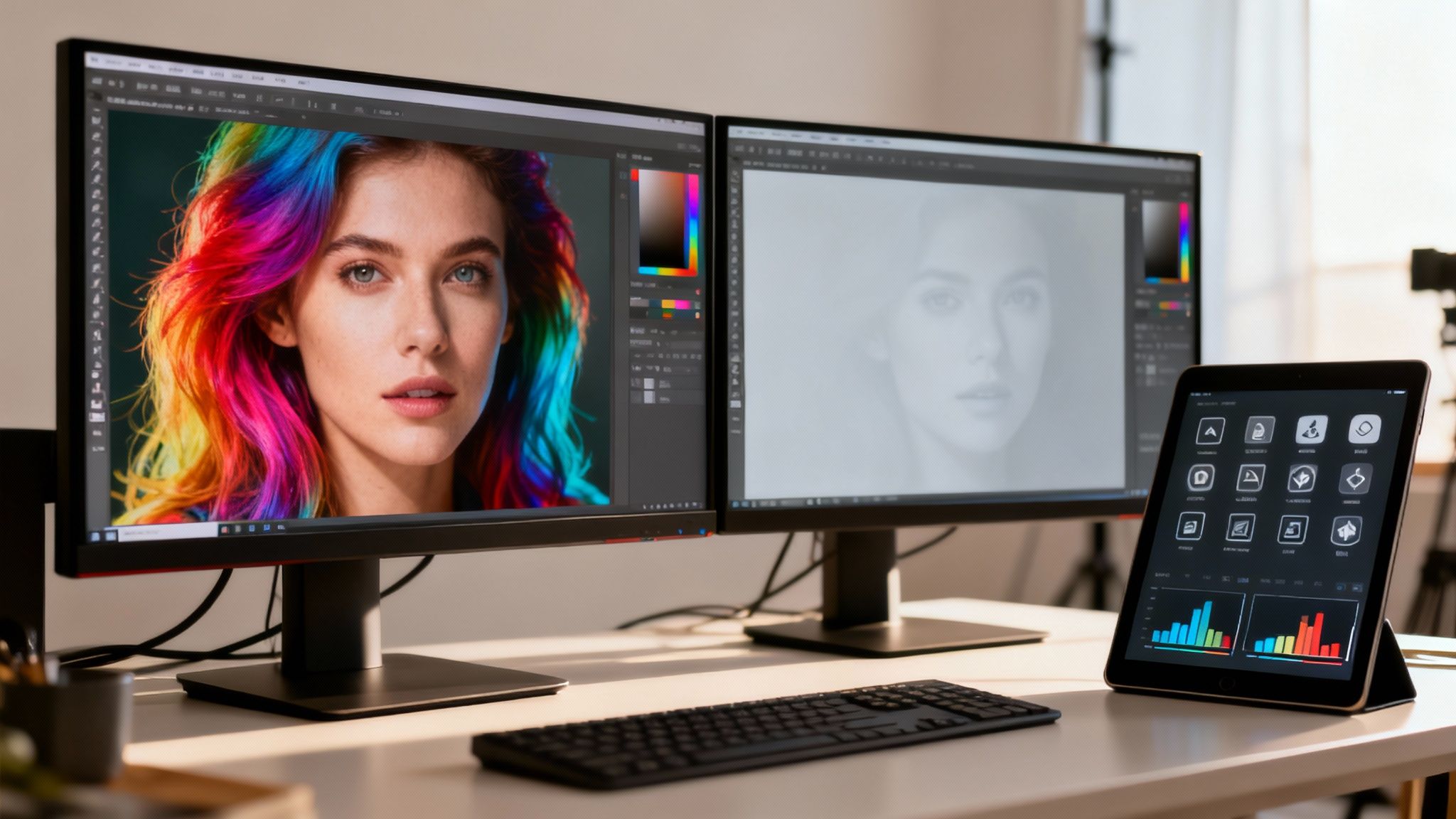
Let's break down the real-world performance of these platforms. I'm going to look at how they handle the pressures of a professional, deadline-driven environment—not just what the tools do, but how they feel to use when time is money.
RAW Processing and Color Science
The first step in any edit—interpreting the RAW file—is everything. It sets the stage for all your creative choices, and this is where Capture One Pro has long been the gold standard for many pros. It's famous for its incredible color rendering right out of the gate, producing deep, accurate tones that portrait and commercial photographers swear by.
Adobe Lightroom, on the other hand, has made huge gains with its color profiles. While its default rendering is more of a neutral starting point, the ability to apply camera-specific profiles gives it a ton of flexibility. For a high-volume shooter, this means you can get a consistent look across thousands of photos with just a few clicks.
To truly understand how these tools function in a professional setting, let's look at how they handle specific workflow stages. The following matrix breaks down the practical differences you'll encounter from import to export.
Feature Workflow Comparison Matrix
| Workflow Stage | Adobe Photoshop | Adobe Lightroom | Capture One Pro | Luminar Neo |
|---|---|---|---|---|
| Import & Culling | Not designed for this. Relies on Bridge or Lightroom. | Robust import, keywording, and rating system. Excellent for high volumes. | Superb tethering and culling tools. Session-based workflow is a studio favorite. | Simple import process, but lacks the deep organizational tools of others. |
| Core RAW Editing | Powerful via Adobe Camera Raw, but clunky for batch processing. | Intuitive sliders and excellent synchronization for batch editing. | Renowned for superior color rendering and advanced color tools. | AI-driven tools for quick, dramatic enhancements. Less manual precision. |
| Local Adjustments | Unmatched pixel-level control with layers and masks. | Flexible masking tools (brush, gradient, radial) are very powerful. | Excellent layer-based adjustments and precise masking capabilities. | AI masking simplifies selecting subjects, skies, etc., but offers less nuance. |
| Retouching | The industry standard. Frequency separation, advanced cloning, Liquify. | Basic spot removal and healing tools are good for simple cleanup. | Solid healing and cloning tools, but not meant for heavy retouching. | AI-powered tools (Skin AI, Face AI) automate portrait retouching. |
| Export & Delivery | Highly customizable export options for web, print, and various formats. | Simple and powerful export presets for repeatable delivery. | Advanced "Process Recipes" for exporting multiple versions at once. | Straightforward export options, suitable for web and social media. |
As the matrix shows, the "best" tool often depends entirely on the specific task at hand. While Lightroom excels at managing and batch-processing an entire wedding, Capture One's Process Recipes are a lifesaver for delivering images to a commercial client with multiple specific requirements.
For a studio photographer shooting tethered, Capture One’s immediate color fidelity is a game-changer. For a wedding photographer, Lightroom’s ability to apply a consistent look across varied lighting conditions is the more efficient choice.
Layering, Compositing, and Detailed Retouching
When you need to go beyond basic adjustments and manipulate individual pixels, the conversation always comes back to one tool: Adobe Photoshop. It remains the undisputed king of deep, complex edits. Its layering system, selection tools, and advanced retouching methods like frequency separation are in a league of their own.
While Capture One and Luminar Neo have layers, they’re designed for localized adjustments like dodging and burning—not for the heavy lifting of compositing or detailed reconstruction. If you need to swap a head in a group photo or build a fantasy image from multiple shots, Photoshop is non-negotiable.
Photoshop isn't just a photo editor; it's a digital canvas. For any work that involves creating something that wasn't there in the original frame, from simple head-swaps to elaborate fantasy composites, its toolset is essential.
This is a critical distinction. If your work regularly goes beyond color and exposure, a workflow that includes Photoshop isn't just a bonus—it's a necessity.
Asset Management Systems
How you organize your photos is just as important as how you edit them. Lightroom and Capture One take two very different approaches to digital asset management (DAM).
Lightroom is built around a single, massive catalog. This database is incredibly powerful for managing huge archives, letting you search years of work using keywords, ratings, and metadata. It's the perfect system for a photographer who wants their entire life's work accessible in one place.
Capture One, however, offers a brilliant dual system:
- Catalogs: These work just like Lightroom's and are great for managing your whole archive.
- Sessions: This is what sets it apart. A Session is a self-contained, project-based folder that holds everything for one shoot—the RAWs, selects, edits, and exports.
The Sessions-based workflow is why so many commercial and studio photographers love Capture One. When a job is done, you can archive that one folder or hand it off to a client without touching your main catalog. For freelancers juggling dozens of different projects, it's an organizational dream.
The Impact of AI on Professional Workflows
AI is no longer a gimmick; it's a legitimate tool that's reshaping professional editing. Photoshop’s Generative Fill has been a revelation, letting photographers remove distracting objects or extend a canvas in seconds—a job that used to take an hour of careful cloning.
Luminar Neo has gone all-in on AI. Tools like Sky Replacement AI and Portrait Bokeh AI can produce incredible results with one click. A pro will still want manual control for a final print, but for drafting a concept for a client or speeding up an initial edit, these features are unbelievably fast.
These AI tools aren't here to replace professional skill. They're here to augment it. By automating the tedious, time-consuming parts of the job, they free you up to focus on what really matters: composition, color, and telling a story with your images. Today, finding the best software means figuring out which program’s AI can save you the most time and, ultimately, make you more profitable.
Analyzing Performance and System Compatibility
Let's get real for a moment: your fancy editing software is useless if the machine it's running on can't keep up. It's not just about features; it’s about how the program behaves under pressure. A laggy, crash-prone application will kill your workflow and your creativity, no matter how powerful its tools are.
This is where the rubber meets the road. We're going to look at what happens when you push these programs with real-world tasks—culling thousands of images, stacking complex edits, and exporting huge batches. Knowing how they perform will tell you if your current computer is up to snuff or if it's time for an upgrade.
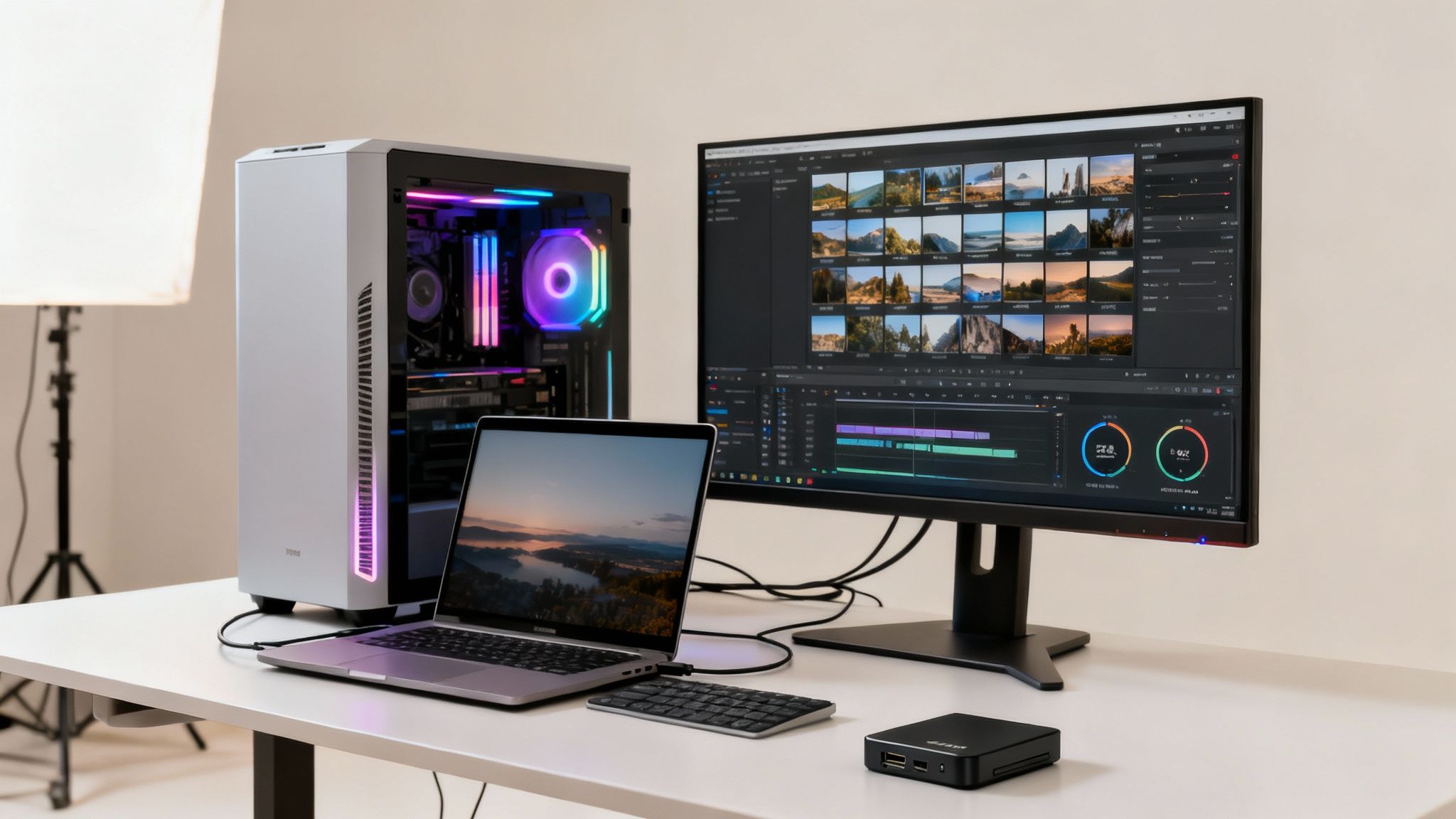
Resource Management and Hardware Acceleration
Modern photo editors are hungry for power, gobbling up your system's CPU, RAM, and especially the graphics card (GPU). How well a program uses that hardware directly affects everything from how smoothly a slider moves to how fast you can get your final images out the door.
- Adobe Lightroom is pretty well-optimized, but its performance is notoriously tied to its catalog. If that catalog is huge and lives on a slow hard drive, you're going to feel the pain.
- Capture One Pro has a reputation for being a speed demon, especially with tethered shooting where you can't afford hiccups. Its engine is built from the ground up to be responsive, even when you're throwing massive RAW files at it.
- Luminar Neo leans heavily on AI, which can be a massive drain on your system. You'll want a beefy GPU to avoid lag, especially when diving into its more intensive features.
If you're building a new machine specifically for editing, checking out a solid PC build guide can save you a lot of guesswork and ensure you get the right components for the job.
Platform and Operating System Considerations
Your operating system matters, too. While all the big players have versions for both macOS and Windows, there can be subtle performance differences. Years ago, some apps clearly favored one OS, and while that gap has closed, it’s still something to keep in mind.
Today, the Windows platform is a popular choice for photo editing. As the platform that powers most desktops worldwide, it's a default, broadly compatible option for many photographers and studios.
A powerful machine doesn't just speed up your workflow; it removes the technical barriers that can interrupt creative flow. When you're not waiting for a progress bar, you can stay focused on the art.
The Mobile Editing Ecosystem
The performance conversation isn't just about desktops anymore. Mobile apps like Lightroom Mobile and Photoshop for iPad have grown up. They're no longer just fun toys; for many pros, they're a critical part of the daily grind.
Lightroom Mobile’s cloud sync is a genuine game-changer. You can sit on the couch and cull, rate, and even apply initial edits to an entire wedding shoot on your tablet. By the time you get back to your desk, all that work is already synced and waiting. That’s hours saved.
This flexibility is becoming a professional expectation. Creative roles are increasingly location-independent, and exploring a remote photo editor job position shows just how valuable a fluid, cross-device workflow has become. In the end, the best software is the one that works reliably wherever you happen to be.
Finding the Right Tool for Your Photography Niche
Choosing your photo editing software isn't just a technical task—it's a critical business decision. The right program should feel like a natural extension of your creative process, not a hurdle you have to overcome. Let's move past the spec sheets and look at how these tools actually hold up in the real world, under the pressure of professional deadlines and client expectations.
We'll break down how the top platforms fit into the day-to-day grind of different photography specialties. This isn't about which software is "best" in a vacuum; it's about which one is best for the work you do every single day.
The High-Volume Wedding Photographer Workflow
For a wedding photographer, the game is all about volume and consistency. You’re not just editing one perfect shot; you’re wrangling thousands of images from a single event. Speed and organization are everything, which is why a workflow built around Adobe Lightroom Classic is an absolute game-changer.
It all starts with the import. A typical wedding can easily generate 3,000 to 5,000 RAW files, and Lightroom’s powerful cataloging system is built to handle that scale. You can apply basic presets and lens corrections right as the images are ingested, instantly saving time and establishing a consistent starting point for the entire gallery.
From there, you jump into culling in the Library module. This is where the magic happens. Using flags, star ratings, and color labels, you can fly through an entire shoot to pick your keepers. It’s a brutally efficient process that blows opening images one-by-one out of the water.
The real secret to Lightroom's power for wedding photographers is its batch processing. Once you nail the edit on one photo from a scene, you can sync those exact settings across hundreds of similar images in seconds. This is how you achieve that cohesive, professional look across the final gallery.
Finally, the Export module lets you create custom recipes for every delivery need. You can output full-resolution JPEGs for the client, web-sized versions for your blog, and watermarked copies for social media—all at the same time. To get ideas for your own signature look, it's worth exploring different wedding photography editing styles to inspire your preset creation.
The Meticulous Portrait and Family Photographer
Portrait and family photographers play a different game. The focus shifts from high volume to high impact, perfecting a smaller selection of images that need to be flawless. While Lightroom is the perfect starting point, the detailed retouching required for professional portraiture demands the pixel-level precision of Adobe Photoshop. This naturally leads to a powerful hybrid workflow.
- Culling and Global Edits in Lightroom: The session always begins in Lightroom. This is where you make your selects and handle the foundational edits—tweaking exposure, white balance, and overall color to set the right mood.
- Advanced Retouching in Photoshop: With the base edit locked in, you send the image over to Photoshop. This is where you do the heavy lifting that Lightroom just can't handle: advanced skin retouching with frequency separation, removing distracting objects with the Clone Stamp, or making subtle adjustments with the Liquify filter.
- Final Touches and Export from Lightroom: After saving in Photoshop, the edited TIFF file pops right back into your Lightroom catalog, sitting next to the original RAW. Back in Lightroom, you can add finishing touches like sharpening or grain and then use its robust export tools for final delivery. This keeps your entire project—originals and all—neatly organized in one place.
This two-program dance gives you the best of both worlds. You get the world-class organization of Lightroom and the unmatched retouching power of Photoshop, a combination that’s tough to beat for delivering impeccable portraits.
The Demanding Commercial Studio Workflow
Commercial and product photographers live in a fast-paced, collaborative world where color accuracy and on-set efficiency are non-negotiable. For this demanding niche, Capture One Pro is often the weapon of choice, thanks to its legendary color engine and rock-solid tethered shooting capabilities.
A standard commercial workflow in Capture One looks something like this:
- Tethered Shooting with Sessions: The camera is wired directly to a computer running Capture One. As images are shot, they appear instantly on a large monitor, allowing the photographer, client, and art director to review them in real time. Using a "Session" keeps every file for that specific job—captures, selects, outputs—organized in a single, self-contained project folder.
- On-the-Fly Adjustments: Styles and presets can be applied the moment an image is captured, giving everyone on set an immediate preview of the final look. This collaborative process allows for instant feedback and crucial adjustments, saving a massive amount of time in post-production.
- Superior Color Control: Capture One’s advanced Color Editor and dedicated Skin Tone tools offer incredible control, ensuring brand colors are rendered with perfect accuracy and skin tones look natural across an entire campaign. This level of precision is absolutely critical in advertising and product work.
This workflow makes it clear why Capture One has become the industry standard for studio photography. It’s more than just an editor; it’s a production hub built for the speed, accuracy, and collaboration required in a commercial environment.
Evaluating Pricing and Long-Term Value
Picking your go-to editing software isn't just a creative choice; it’s a serious financial one. You're not just buying a tool; you're investing in the very engine that powers your workflow, your efficiency, and ultimately, your business's bottom line. The way you pay for that software directly hits your cash flow and defines what it really costs you over the years.
Right now, the photo editing world is mostly split into two camps. On one side, you have Adobe pushing its Software as a Service (SaaS) subscription model. You pay a monthly or annual fee, and you always have the latest and greatest version. It keeps the initial cost low and makes budgeting predictable.
On the other side, Capture One gives photographers a choice: you can subscribe just like with Adobe, or you can buy a perpetual license. This is a classic one-and-done purchase. You pay a larger sum upfront and own that specific version of the software forever.
Subscription vs. Perpetual License
The subscription route, like Adobe's popular Photography Plan, is all about staying current. You get every new feature, AI tool, and camera profile the moment it drops. For a busy studio or a professional who absolutely needs the newest tech, this constant evolution is non-negotiable. It's a straightforward operational expense.
A perpetual license offers a different kind of peace of mind—total ownership and control. If you're a freelancer just starting a professional photography business, the idea of buying your most important tool outright is incredibly appealing. No monthly bills, no surprise price hikes. You bought it, you own it.
The real question isn't "which is cheaper?" but "which model aligns with my business's financial strategy?" A subscription buys you constant evolution, while a perpetual license buys you long-term stability.
This decision often comes down to your specific niche and workflow needs.
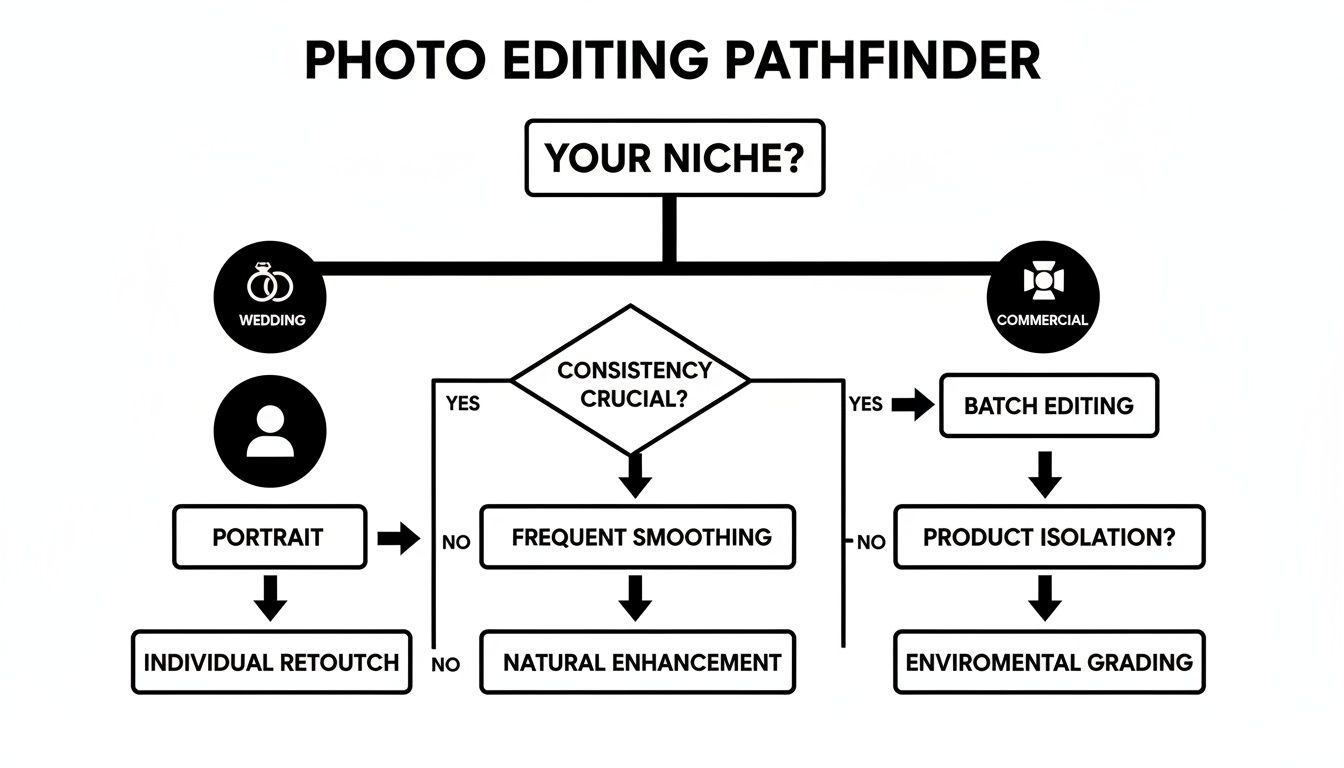
As the flowchart shows, whether you shoot weddings, portraits, or commercial campaigns can steer you toward a certain software simply because of how it handles the job.
Calculating the True Cost of Ownership
So, what does this look like in your bank account over the long haul? Let’s break down the numbers over a typical three-year period to see the real cost.
- Adobe Photography Plan (Lightroom + Photoshop): At about $9.99/month, you’re looking at a total of roughly $360 over three years. That price includes every single update, new feature, and a bit of cloud storage.
- Capture One Pro Perpetual License: The initial purchase will set you back about $299. But—and this is a big but—if they release a major paid upgrade every year and a half (which is pretty standard), you might pay another $199 to get it. Your three-year cost suddenly jumps to $498.
- Capture One Pro Subscription: This runs closer to $24/month. Over three years, that adds up to $864. It's the priciest option, but like Adobe, it includes all updates with no extra upgrade fees.
What this shows is that a "one-time" purchase isn't always a one-time cost if you want to keep your software modern. You have to factor in the price of future upgrades.
The market for these tools is huge, and North America is a major part of it. With major players like Adobe headquartered here, the competition keeps pushing them to refine both their features and their pricing models.
Your Photo Editing Software Questions, Answered
Choosing the right photo editing software can feel like a maze. Every platform claims to be the best, and it's tough to know which one truly fits your needs. Let's cut through the marketing hype and get straight to the answers for the most common questions photographers ask.
Do I Need Photoshop if I Already Have Lightroom?
This is easily the question I hear most, and the answer really boils down to how deep you need to go with your edits. Think of it this way: Lightroom is your command center for 90% of the job. It's built for organizing, culling, and making powerful, non-destructive adjustments across hundreds or thousands of photos at once.
But for that final, crucial 10%—the pixel-perfect, detailed work—you absolutely need Photoshop. Things like intricate compositing, high-end skin retouching with frequency separation, or removing a distracting power line from a complex background are just not what Lightroom was designed for. That's why Adobe bundles them in its Photography Plan; they’re two sides of the same professional workflow coin.
Think of Lightroom as the efficient manager of your entire photo library, handling the bulk processing and organization. Photoshop is the specialist you call in for intricate, high-stakes surgery on a single image.
Is a Subscription Better Than a One-Time Purchase?
This one is all about your business model and cash flow. A subscription, like Adobe’s, means a lower initial cost and the huge benefit of getting continuous updates. For working pros, having immediate support for the latest cameras and access to new tools as they're released is a massive advantage.
On the other hand, a perpetual license from a company like Capture One requires a larger investment upfront but gives you permanent ownership of that version. This makes your long-term expenses predictable, which is great for freelancers or small studios on a tight budget. The catch? You'll have to pay for major upgrades to get new features, so it's not always a true one-and-done purchase.
Can Free Software Replace Professional Tools?
For anyone just starting out or shooting as a hobby, free software like GIMP or Darktable is incredible. They’re fantastic for learning the ropes of photo editing without spending a dime. But for a professional photographer, they come up short where it matters most: efficiency and client-grade quality.
Professional software justifies its cost with a few critical advantages:
- Superior RAW Processing: The RAW engines in paid tools simply give you more flexibility and produce a better-looking starting point for your edits.
- Advanced Color Management: When color accuracy is non-negotiable for a client, pro software provides the sophisticated controls you need.
- Streamlined Asset Organization: Juggling thousands of images from multiple shoots is a nightmare without a robust cataloging system.
- Performance and Stability: When you're on a deadline, you need software that's fast and won't crash. Paid tools are generally much more reliable.
Ultimately, the time saved and the quality boost you get from Photoshop or Capture One is a serious return on investment for any photographer who depends on their images for income.
How Important Are AI Features in Modern Editing?
Just a few years ago, AI in photo editing felt like a gimmick. Today, it’s a core part of a modern workflow and a real competitive edge. These AI-powered tools aren’t about faking images; they’re about automating the most tedious, time-sucking tasks so you can focus on the creative side.
Think about these real-world scenarios:
- AI Masking: What used to take minutes of careful brushing—selecting a subject, a sky, or a background—is now a one-click job. This saves hours on a wedding gallery.
- AI Noise Reduction: Lightroom's Denoise AI can rescue low-light shots that would have been unusable in the past.
- Content-Aware Removal: Getting rid of a distracting sign or tourist from a perfect shot is now a seamless, almost magical process.
For high-volume photographers, these AI tools are a complete game-changer. You can deliver galleries to clients faster and with more consistency than ever before. AI doesn't replace your skill; it amplifies it. Once your images are perfectly polished, a great next step is to learn how to create a photo slideshow and turn them into a powerful story for your clients.
At Candid Studios, we know that the right tools are just the start of creating beautiful, lasting images. From weddings to commercial shoots, our team blends technical expertise with a storyteller's eye to bring your vision to life. Learn more about our photography and videography services.